
There is a version of this article all over LinkedIn right now. It says Claude manages your spreadsheets, and it is wrong in a way that matters.
Claude's Google Workspace connectors got a significant upgrade on 18 August 2026. Gmail gained the ability to send. Drive gained the ability to share, move and trash files. Both were read-only before that. It is a real step change, and the reaction has been predictably overheated.
So here is what the connector actually does with Sheets, taken from Anthropic's own documentation rather than from someone's summary of it, including the limitation almost nobody mentions, and why that limitation is the most reassuring thing about it.
What it can do
Anthropic's connector documentation lists Drive's capabilities explicitly. For spreadsheets, the relevant ones are:
| Capability | Available |
|---|---|
| Read and analyze an existing Sheet | Yes |
| Write and explain formulas | Yes |
| Create a new spreadsheet and save it to Drive | Yes |
| Share, move or trash a spreadsheet file | Yes |
| Look up file metadata and permissions | Yes |
| Edit cells in an existing live Sheet | No |
That last row is the one the hype posts skip.
The documentation phrases it plainly: the connector will "Read Sheets, Slides, PDFs, images, and MS Office files." Read. It will also "Save Claude-generated files directly to your Drive" with optional auto-conversion into Google formats, which is how a new spreadsheet gets created. But there is no cell-level write path into a spreadsheet that already exists.
One more detail worth knowing before you plan a workflow around it: "Claude extracts text content only from Google Drive files. Images embedded in documents are not processed." If your reporting relies on pasted screenshots, it cannot see them.
Why the limitation is the right design
The instinct is to read that as a gap. Give it a few months and it will surely edit in place, and then the tool will be complete.
I would argue the opposite. Consider what in-place editing actually means for a spreadsheet inside a business.
Your operational sheets are shared. The budget tracker has five people in it. The campaign log feeds a dashboard. The forecast has formulas that three other tabs depend on. These files are not documents, they are small pieces of infrastructure.
An AI with write access to a live shared spreadsheet is one ambiguous instruction away from silently changing a number that somebody downstream will act on. Not maliciously. Not even incorrectly, necessarily, just differently from what you meant, in a cell you were not looking at, in a file six people depend on.
Because the connector cannot edit in place, that failure mode does not exist. Claude reads your messy export and hands you a clean new file. Your source data is untouched. You compare the two, and you decide what replaces what.
That is not a missing feature. That is a sensible default, and it is the same philosophy behind Gmail asking before it sends.
What this is genuinely good at
Reframed correctly, the read-and-produce model covers most of what actually eats time.
Making sense of an export you did not build. Point Claude at a Sheet and ask what is in it. It will describe the structure, flag the columns that are inconsistently formatted, and tell you where the blanks and duplicates are. This is the task that usually costs twenty minutes of scrolling and squinting.
Formulas, explained rather than just written. The useful version is not "write me a VLOOKUP." It is "this formula returns an error on about forty rows, tell me why." Claude will explain the failure and give you a corrected version. You learn something, which compounds; a pasted formula does not.
Reconciliation. Two exports that should tie out and do not is one of the most reliably miserable jobs in any business. Give Claude both and ask where they diverge and what could explain it. It is very good at this, because it is a reading task, not a writing one.
Turning a mess into a structured summary. The output does not have to be another spreadsheet. Often what you want from a 4,000-row export is six sentences and three numbers, and that is a better deliverable than a pivot table nobody opens.
Building the clean version. Once you know what is wrong with a file, Claude can produce the fixed one and drop it in your Drive as a new Sheet.
When to reach for something else
Being honest about the boundaries is what makes the tool useful rather than disappointing.
If you need live in-place editing, this is not the path. Claude for Excel operates differently, and third-party automation platforms will write to Sheets via the API if that is genuinely what your workflow requires. Just be deliberate about handing write access to a shared operational file.
If the data is in images inside the sheet, the connector cannot read them.
If the task is recurring and identical every week, you want a scheduled job, not a conversation. The conversational surface is for questions that vary.
Setting it up
Connect Google Drive from the connectors menu in Claude. It is available to all users on Claude and Claude Desktop. Every action Claude takes on your behalf asks for approval by default. On Team and Enterprise plans, owners decide which actions members are allowed to auto-approve without being asked each time.
A recommendation on that setting: leave approval on for anything that shares, moves or trashes a file. The convenience saved by turning it off is small. The cost of an unattended file operation on a shared Drive is not.
The actual shift
The headline capability is not that Claude can calculate faster than you. It never struggled with arithmetic.
The shift is that the entry cost of interrogating your own data has collapsed. The question "why does this export not tie out to last month" used to be worth an afternoon, which meant it frequently went unasked. Now it costs about ninety seconds, which means it gets asked, and questions you can afford to ask are the ones that actually get answered.
That is a smaller claim than "AI manages your spreadsheets." It also happens to be true.
How to actually set it up
The whole point of the section above is that this is worth doing. Here is the part most write-ups skip.
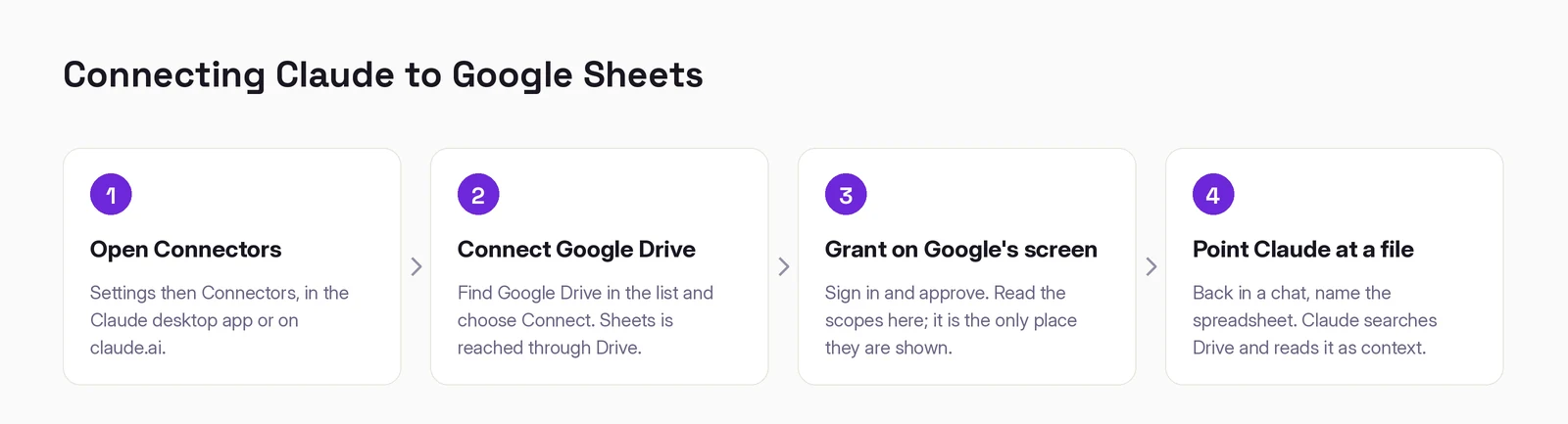
1. Open Settings → Connectors. In the Claude desktop app or on claude.ai. The Google Workspace connectors are available on all plans, free included.
2. Find Google Drive and choose Connect. There is no separate "Google Sheets" connector, and looking for one is the second most common source of confusion. Sheets is reached through Drive, because Drive is where the file lives.
3. Sign in and approve on Google's consent screen. Read this screen rather than clicking through it. It is the only place the scopes are shown, and what you approve here is what Claude can reach for every future conversation, not just this one.
If your account is managed by a work Google Workspace, your admin may have blocked third-party app access. The failure looks like a generic error rather than a permissions message, which sends people hunting in the wrong place. If step 3 fails on a work account, ask your admin before you debug anything else.
4. Point Claude at the file in a normal chat. Name the spreadsheet. Claude searches Drive, finds it, and reads it as context. You do not paste a link or an ID.
A good first prompt, because it tests the connection and produces something useful at the same time:
"Open the Q3 campaign spend sheet in my Drive. Tell me which three line items moved most against last quarter, and what you would check first to explain each one."
If that returns real numbers from your sheet, the connection works.
What it can and cannot do
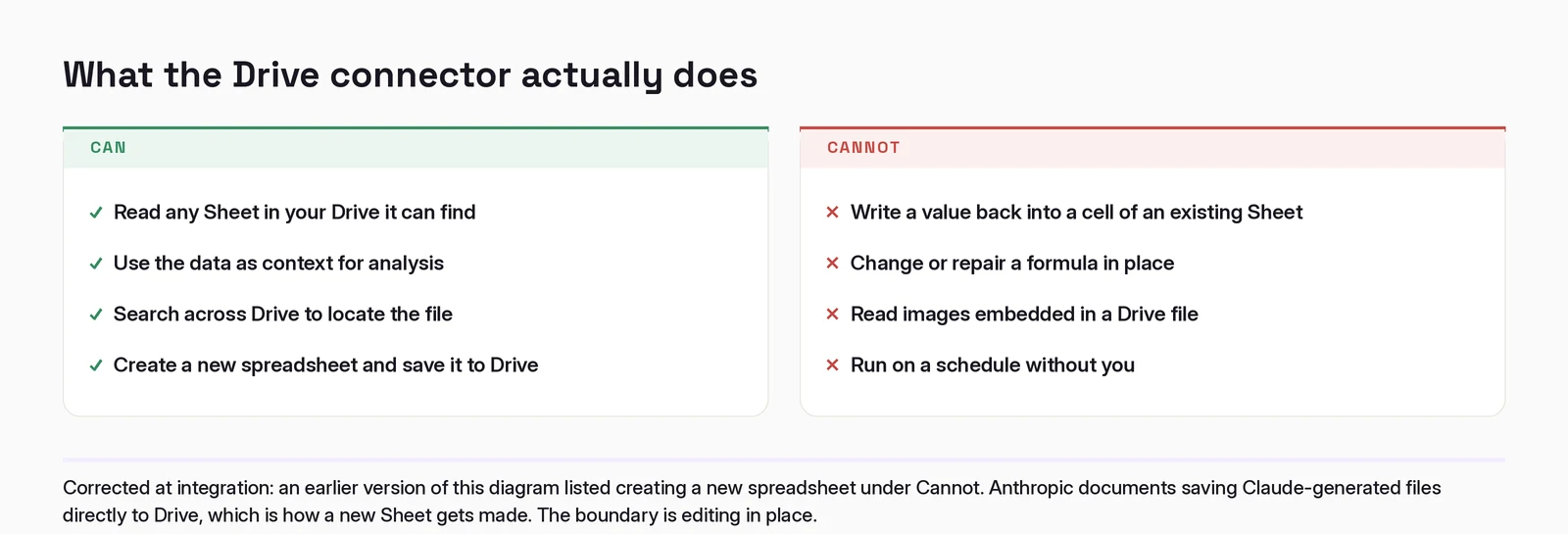
This is the part worth internalizing before you build a habit around it. The Drive connector reads. It does not write. If you need a value changed, a formula repaired, or a new sheet created, that is an MCP server, not this connector, a different setup with a different permission conversation.
When it does not work
"I don't see Connectors." On Team and Enterprise plans an Owner or Primary Owner must enable them at the organization level first. You cannot turn them on from your own settings.
"It connected but cannot find my file." Check the file is in the Drive of the account you authorized. A personal Google account and a work account are different Drives, and connecting one does not reach the other.
"It found the file but the numbers look wrong." Check for multiple tabs. Naming the tab in your prompt resolves this almost every time.
"It worked yesterday and not today." OAuth grants expire and admins revoke them. Disconnect and reconnect in the same Connectors menu before assuming anything is broken.
Working out where AI actually fits in your marketing?
I write these while building the systems behind them: measurement, creative pipelines, and agents that do real work. Connect on LinkedIn and tell me what you are working on. That is where these conversations start.
Connect on LinkedIn